Bookings & calendar
Working with the calendar
The calendar is the beating heart of your day. View bookings, check customers in and add bookings by hand.
2 min readBeginnerUpdated October 14, 2026
The calendar is the beating heart of your day. View bookings, check customers in and add bookings by hand.
In the calendar you see what's scheduled per resource for the day. Online bookings appear automatically; you can also add a booking yourself.
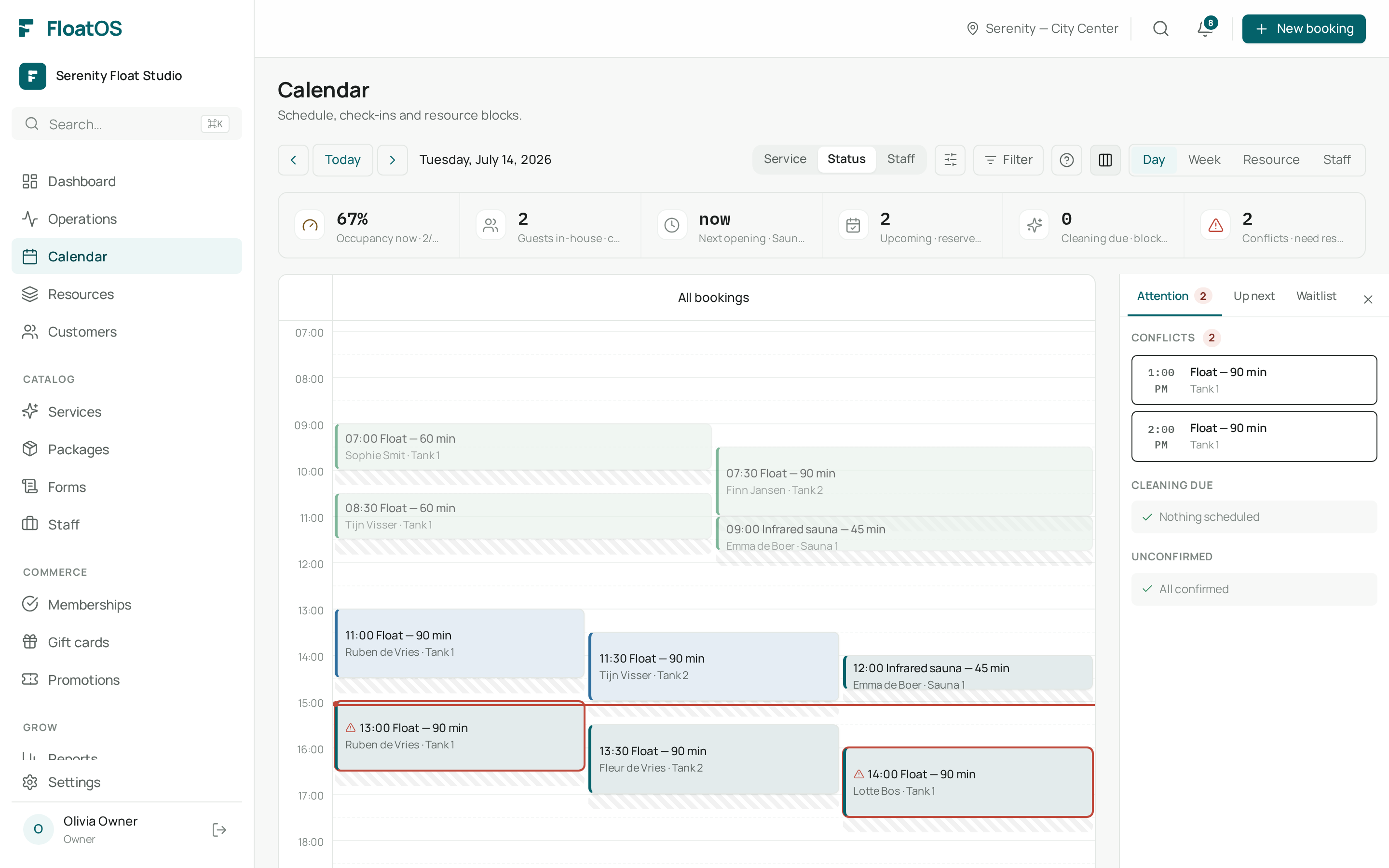
When a customer arrives, set the booking to Checked in. Afterwards mark it Completed — that counts towards your reports and revenue.
Statuses are configurable. Adapt them to your own workflow under the booking settings.
Yes, within the cancellation window you set in your booking policy. Outside that, you can always do it manually.